Slate
Content Optimization Tool
Visual Design
User Experience
Long Story Short
Slate is a content optimization platform for helping users optimize their content to get cited by AI agents like ChatGPT, Claude, and Gemini. Their Generate content plan feature wasn't delivering the user experience they wanted.
The main pain point? Users had to input their keywords and prompts through a dialog box, which added an unnecessary step to what should be a smooth workflow. On top of that, the visual representation of the content plan generation process needed improvements. It worked, but felt clunky.
Speaking to Business Owner
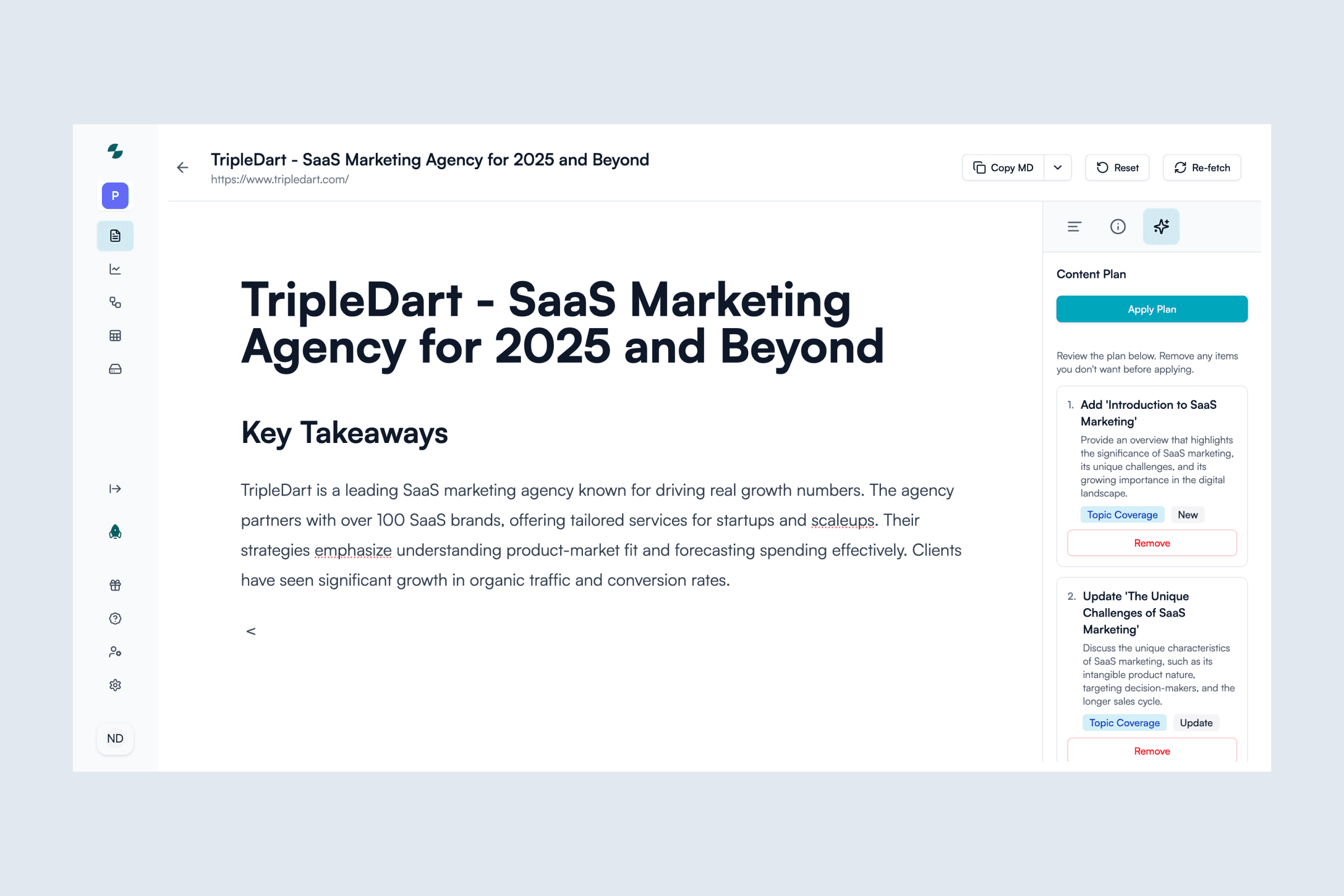
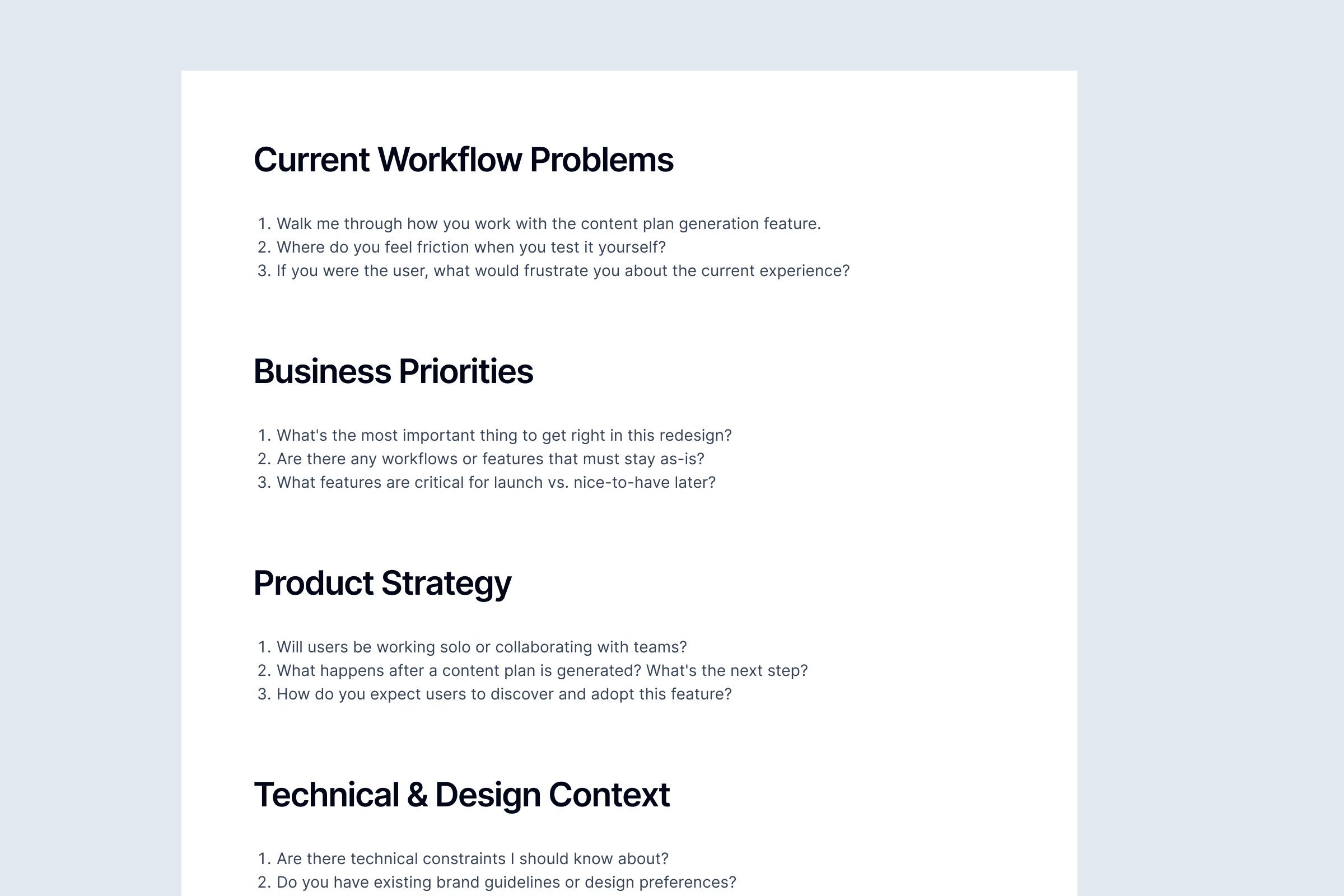
Without a customer base to talk to, I asked relevant questions to the business owner: what do you currently want to improve? What are the problems with the current workflow? This gave me clarity on what they actually wanted to improve. They wanted the content plan generation to be as smooth as possible with a revamp of the entire workflow.
Market Research
Before jumping into design, I wanted to see what else was out there. Not to copy features, but to understand how other platforms approached the visual design of content optimization. I looked at several competitors like Surfer, Clearscope, MarketMuse, Ahrefs Content Helper, Frase, Lex, Semrush Writing Assistant, Yoast SEO, PageOptimizer Pro, Dashword, and GrowthBar.

After reviewing them all, I narrowed my focus to Surfer and Frase. Their visual design stood out. They'd clearly thought through how to make complex optimization tools feel approachable and easy to use.
Rethinking the Structure
I started breaking down the interface component by component, thinking through each piece of the user journey.
Sidebar
The existing sidebar was eating up too much screen space when expanded. I explored two different approaches: one where the sidebar could expand or collapse, and another where it could be in collapsed or hidden state.
Navigation Between Contents
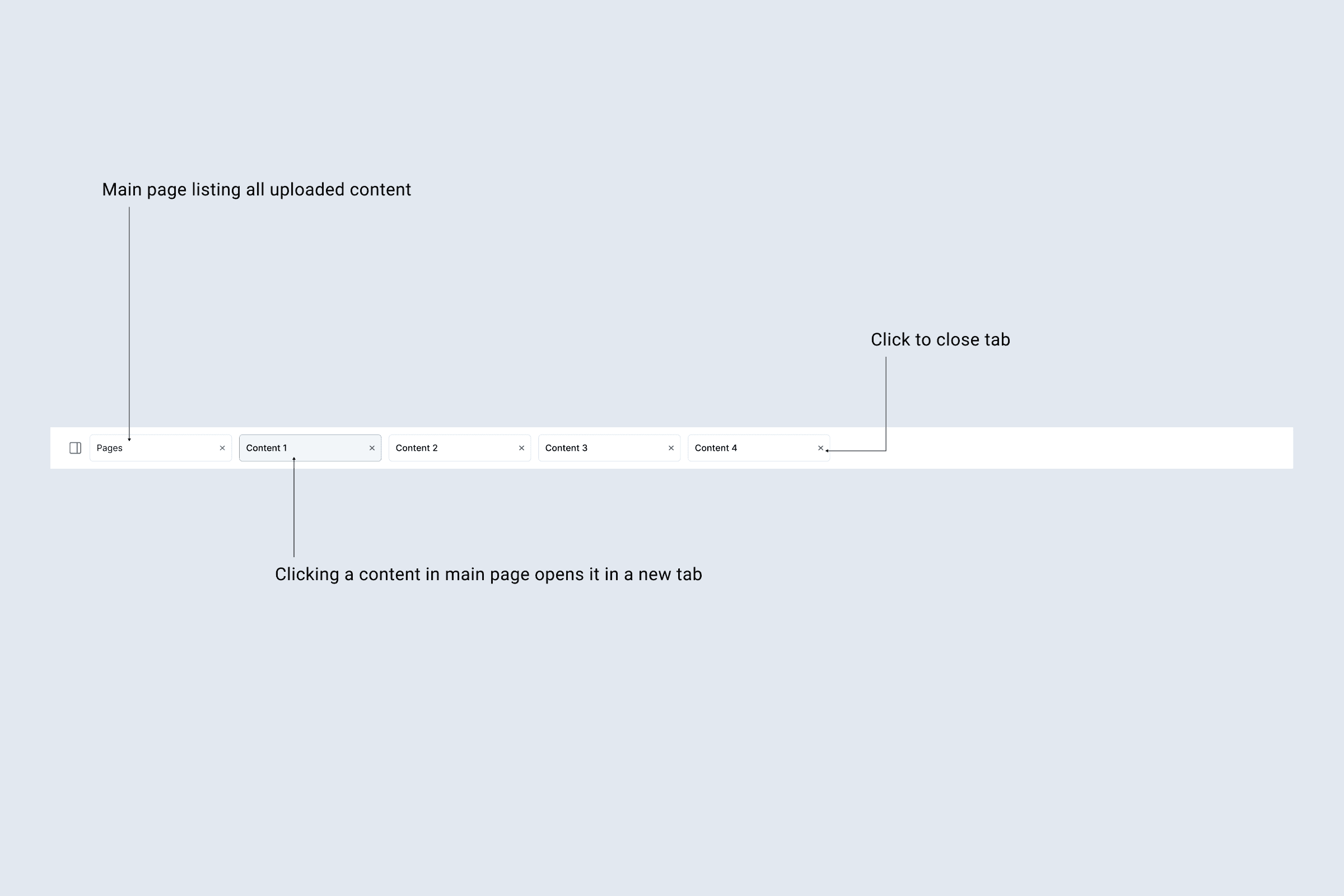
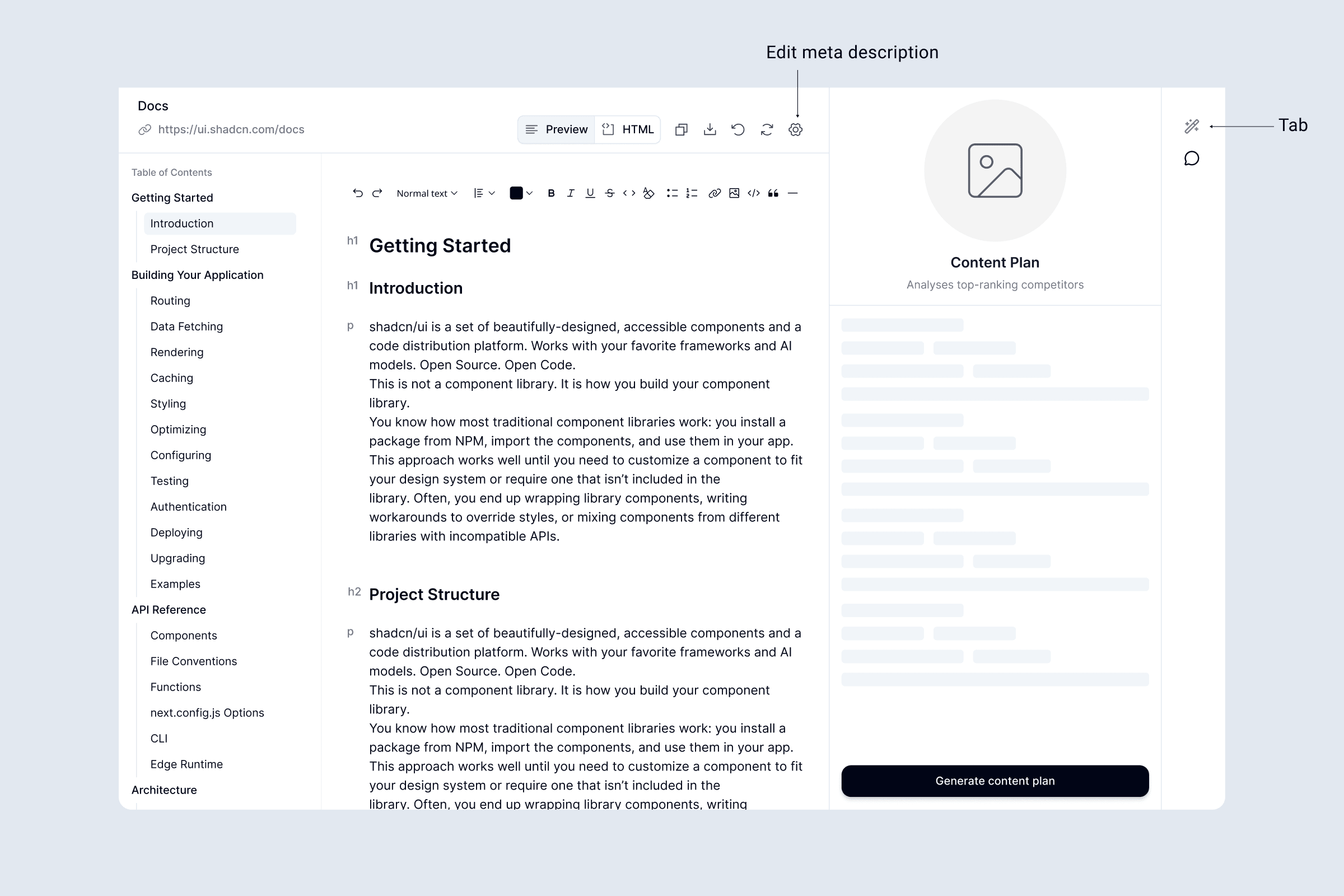
Slate already had a main page listing all uploaded content. The question was how do users move between different pieces of content once they're in the editing view? I designed a tab that would let users quickly switch between different content pieces without losing their place. Simple, but effective.
Content Toolbar
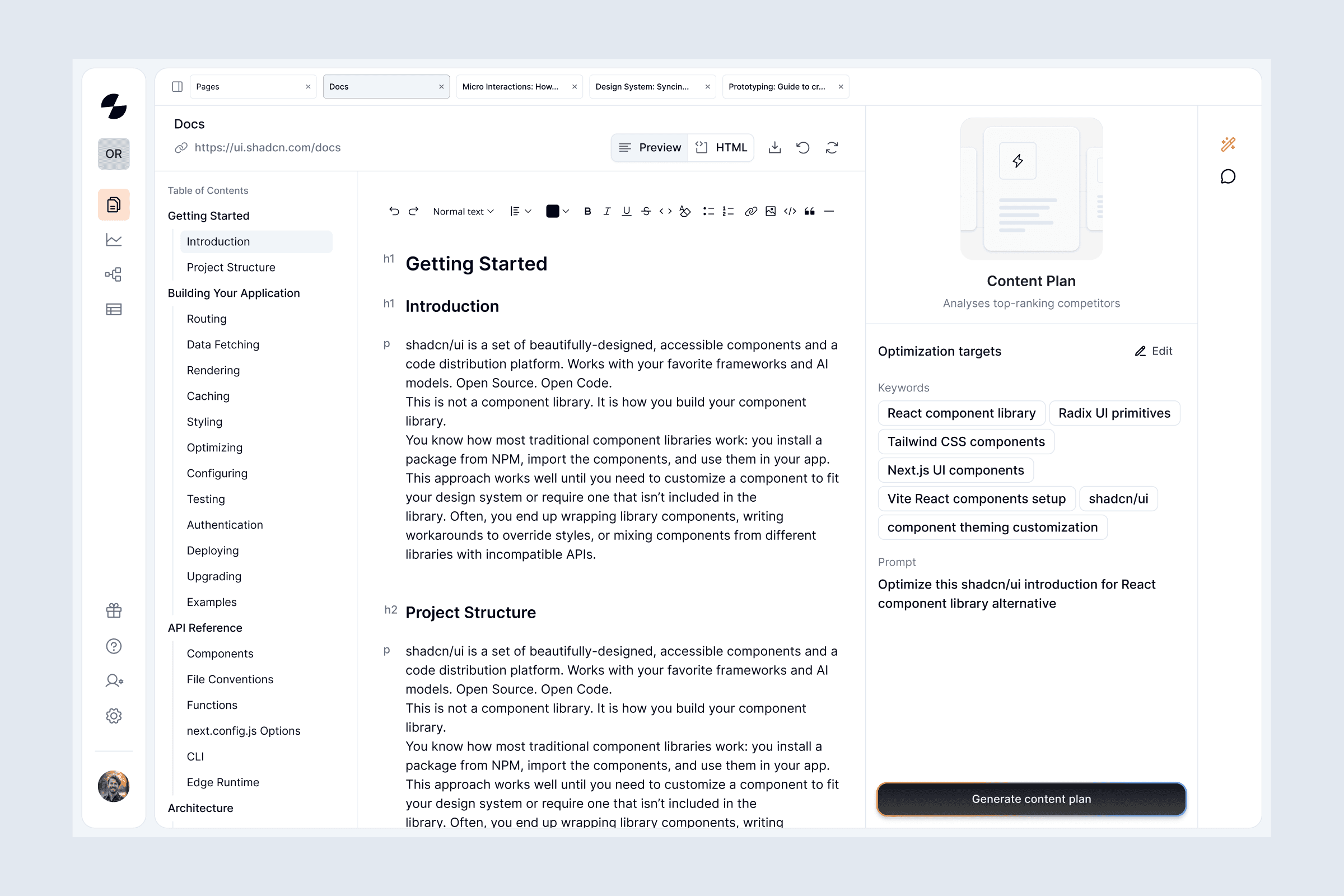
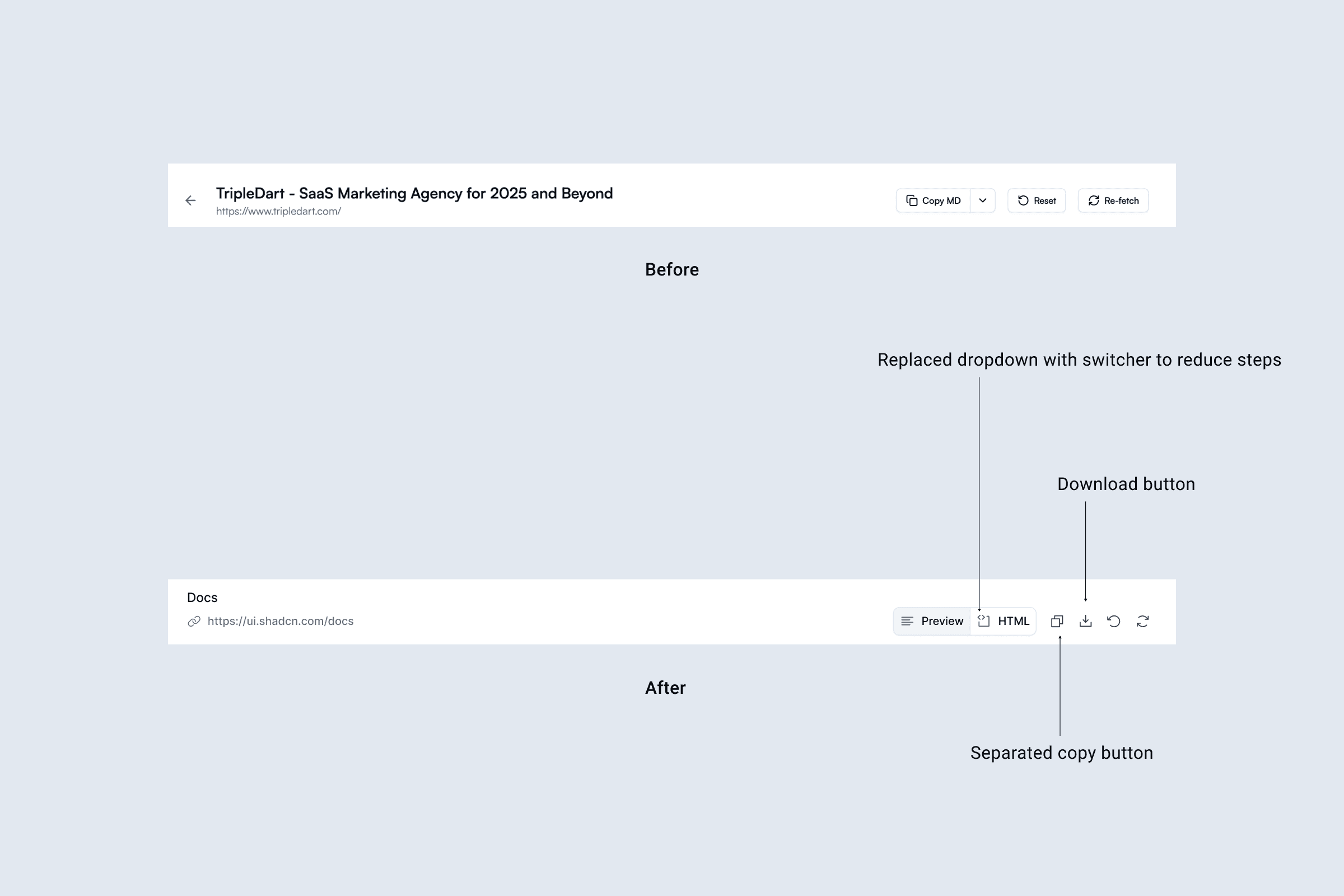
The toolbar already had page title, page link to the original source, markdown/HTML switcher, copy button, refetch button to pull fresh updates, and a reset button. I added a download button to make it easier for users to save their content. All of this needed to be accessible without cluttering the interface.
Editor
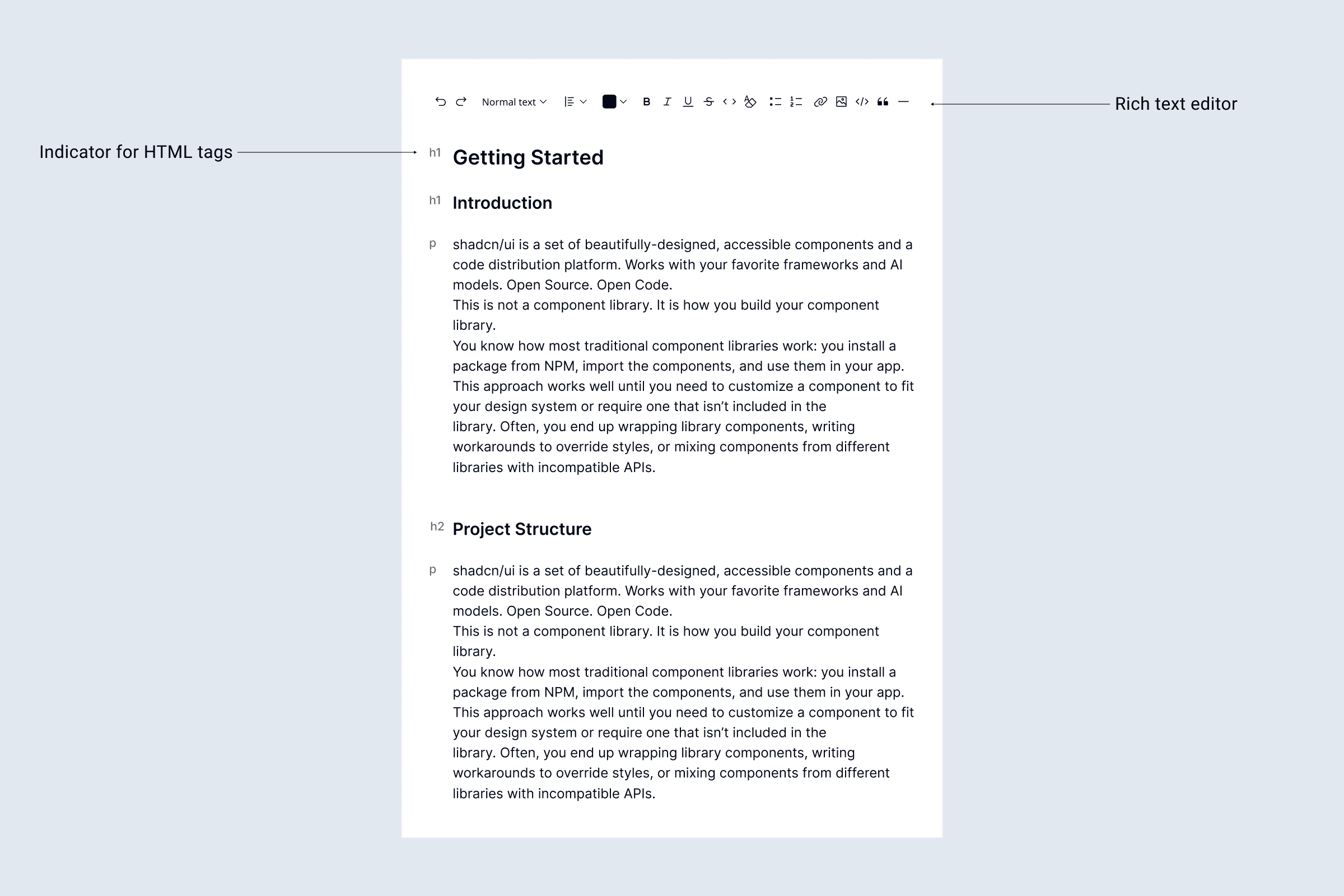
For the content display, I placed a rich text editor with visual indicators for HTML tags making it easy to see heading hierarchies and paragraph structures at a glance. The goal was to make the technical aspects of content structure feel less technical.
Making Room for What Matters
The table of contents was positioned right where the content plan generated, forcing users to take an extra step. Plus, there was a separate tab for meta description taking up space.
I redesigned the layout by placing the tab to the right of content plan generation, moving meta description to the toolbar, and shifting the TOC to the left of the editor. This dedicated the entire center space to content plan generation. The business owner also wanted a way for users to add comments, so I included this in the tab.
Content Plan Generation
And now the centerpiece, content plan generation. Instead of hiding the keyword and prompt inputs behind a dialog box, I needed to find a way to make this feel like a natural part of the workflow. The challenge was making it accessible without getting in the way.
Here's how I modified the workflow.
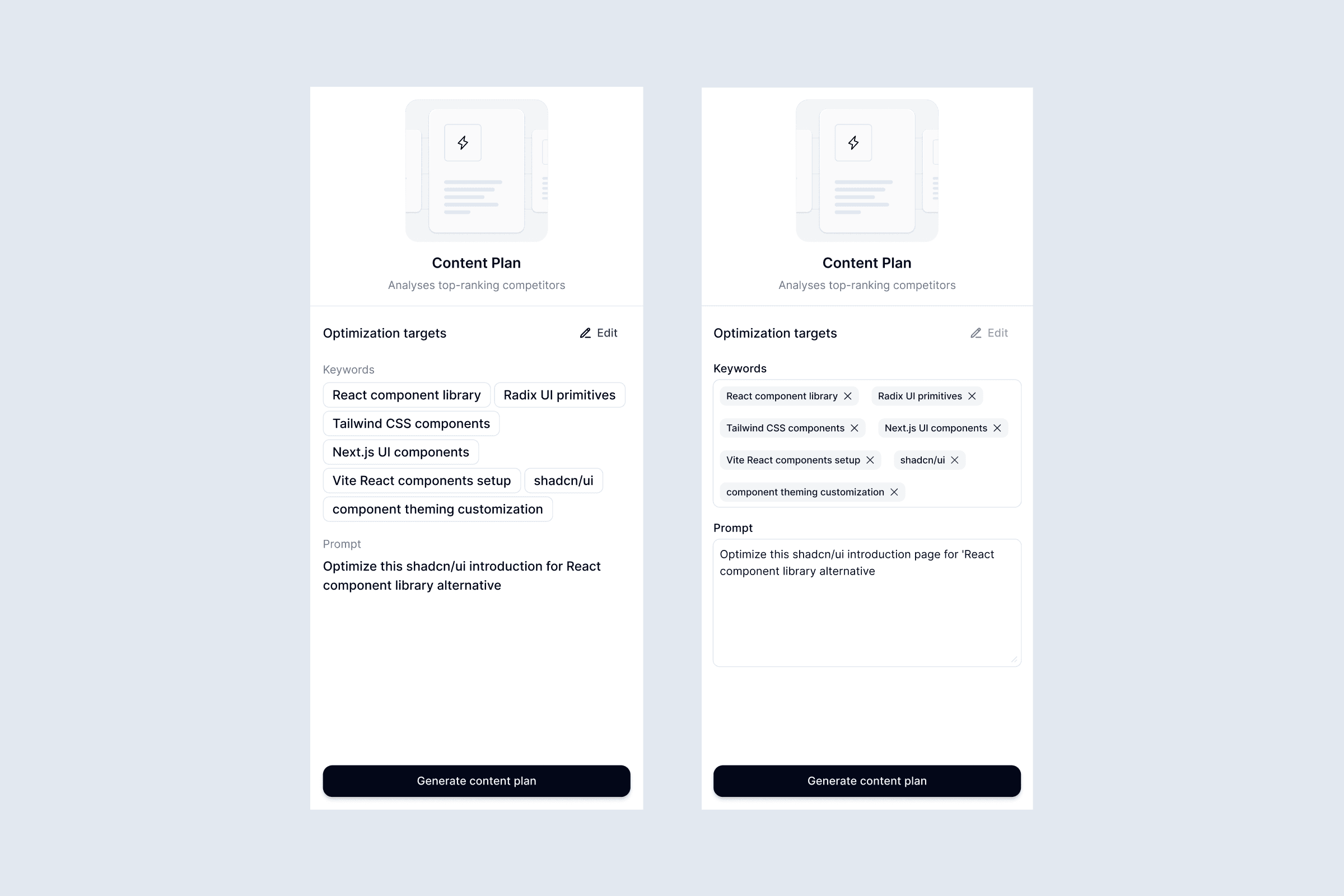
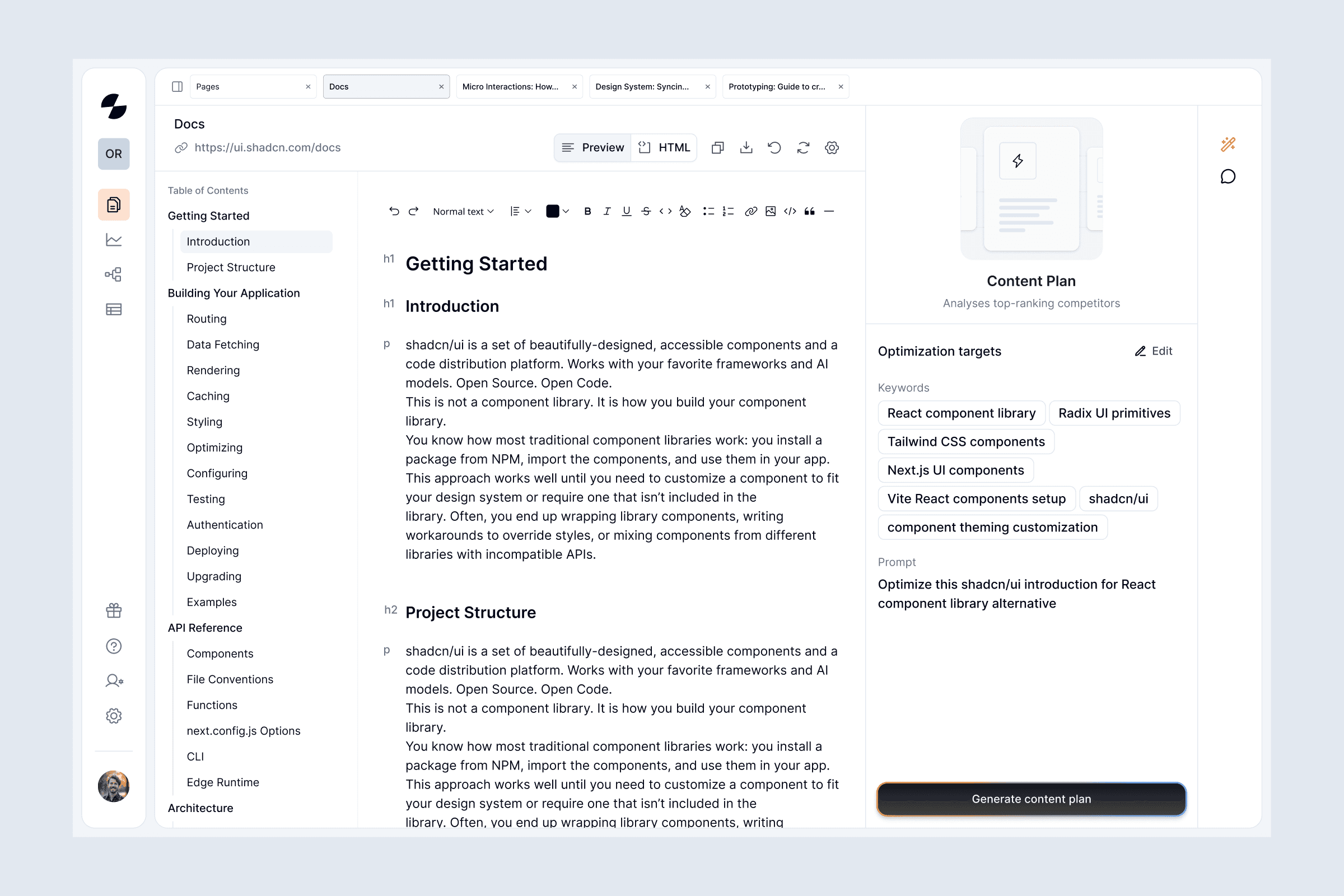
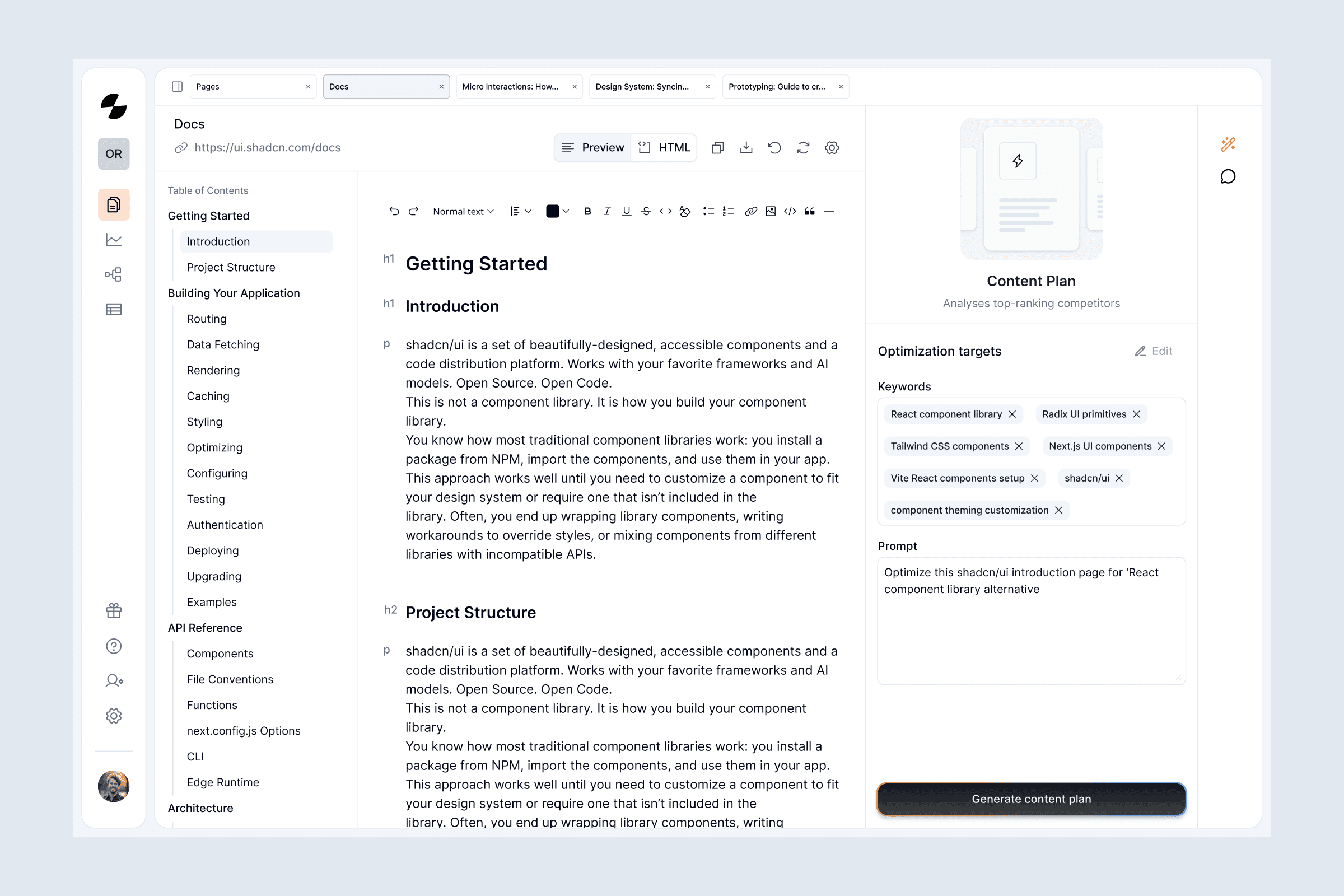
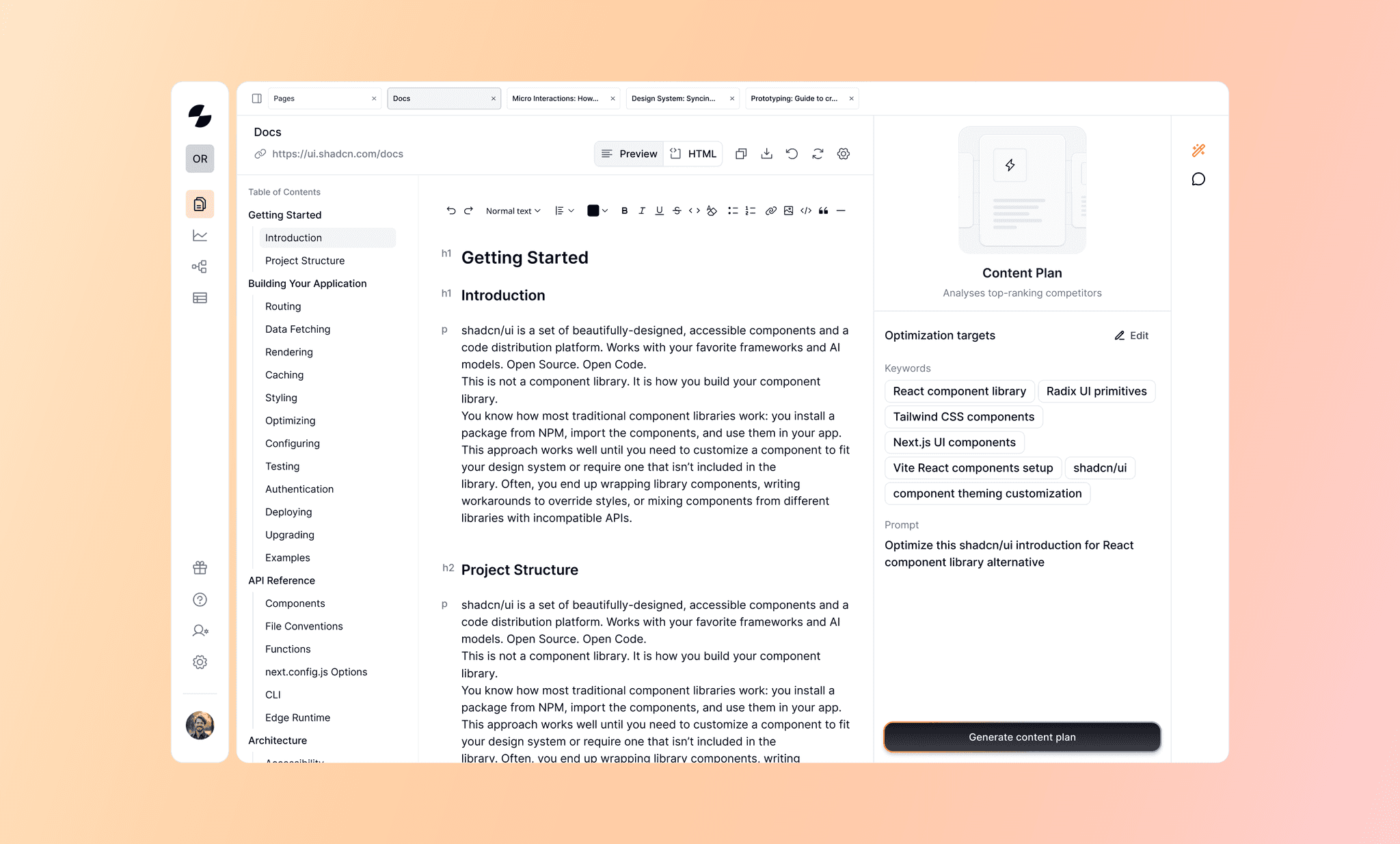
Content plan section comes prefilled with details based on the selected content. Users can edit these details with the edit button.
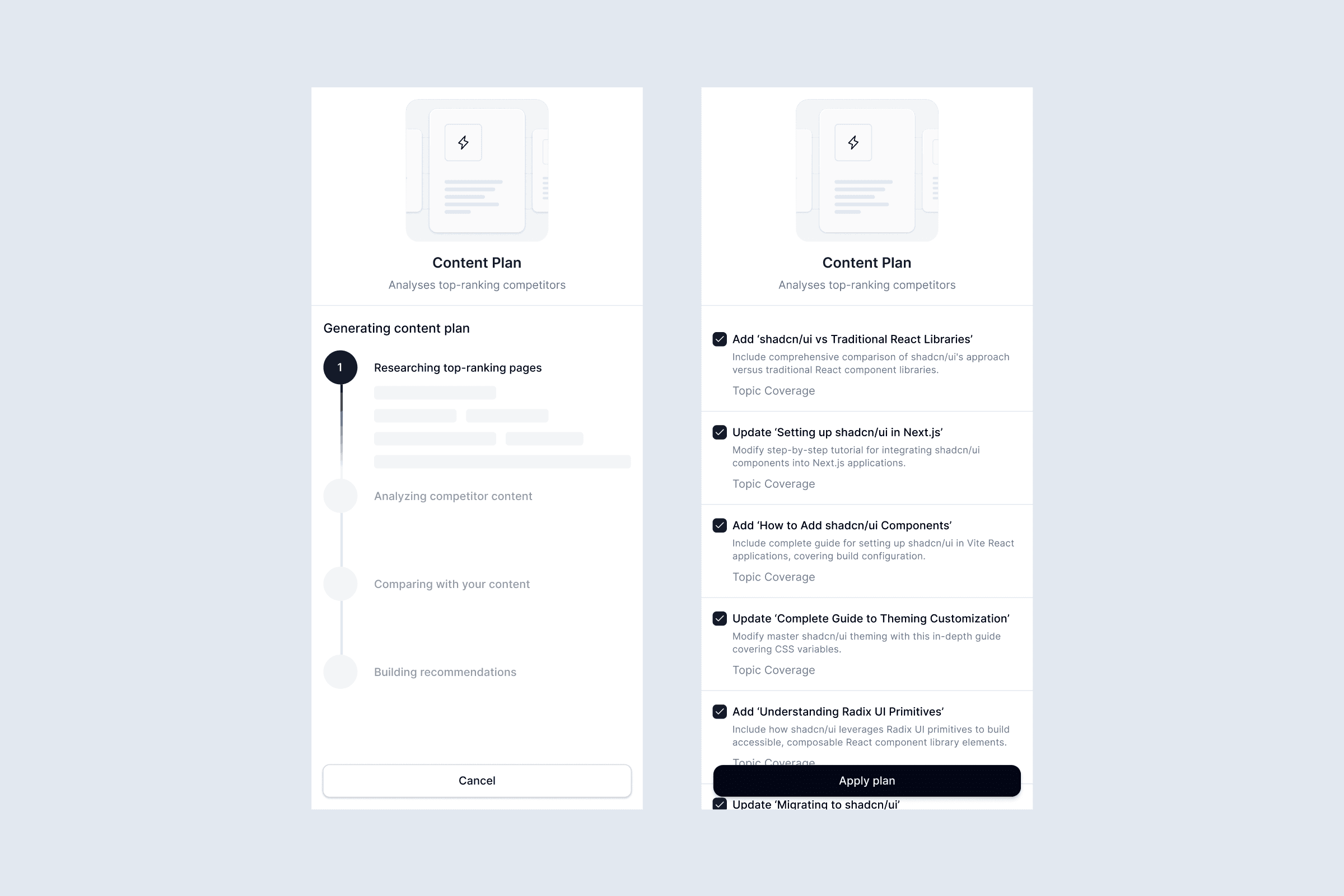
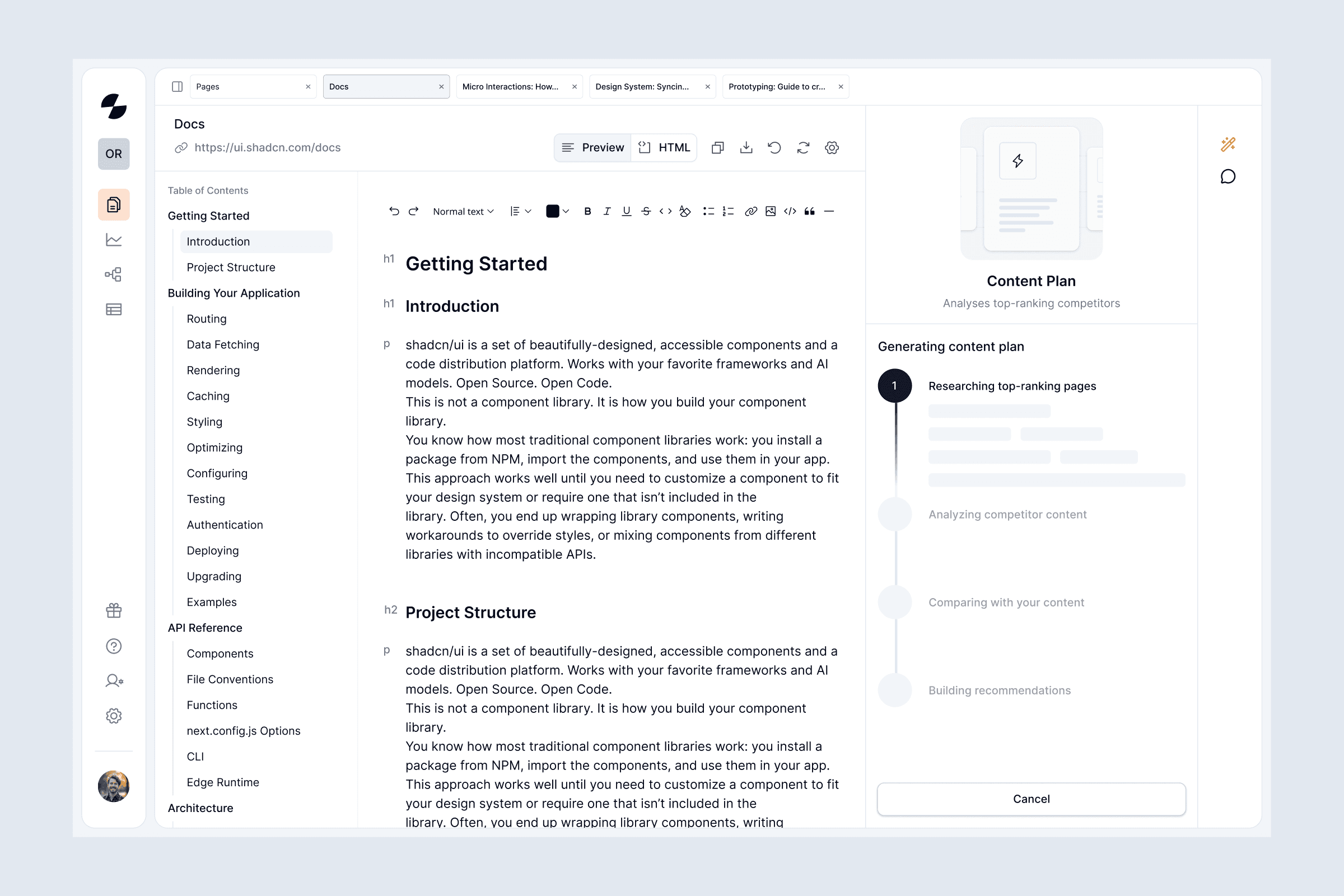
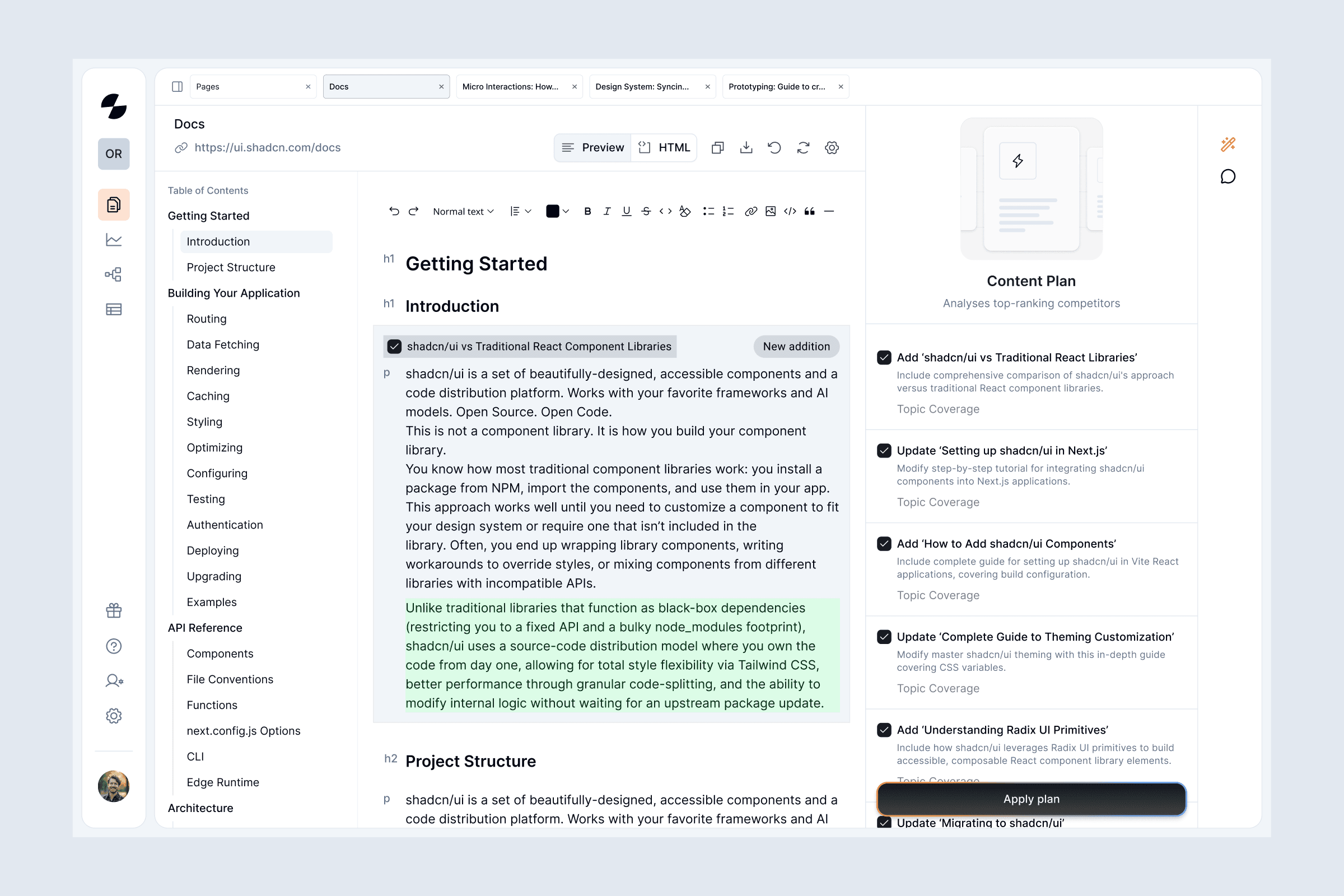
When users hit generate, a progress indicator shows each step. Once complete, suggestions for improvement appear. Users can unselect any they don't want applied.
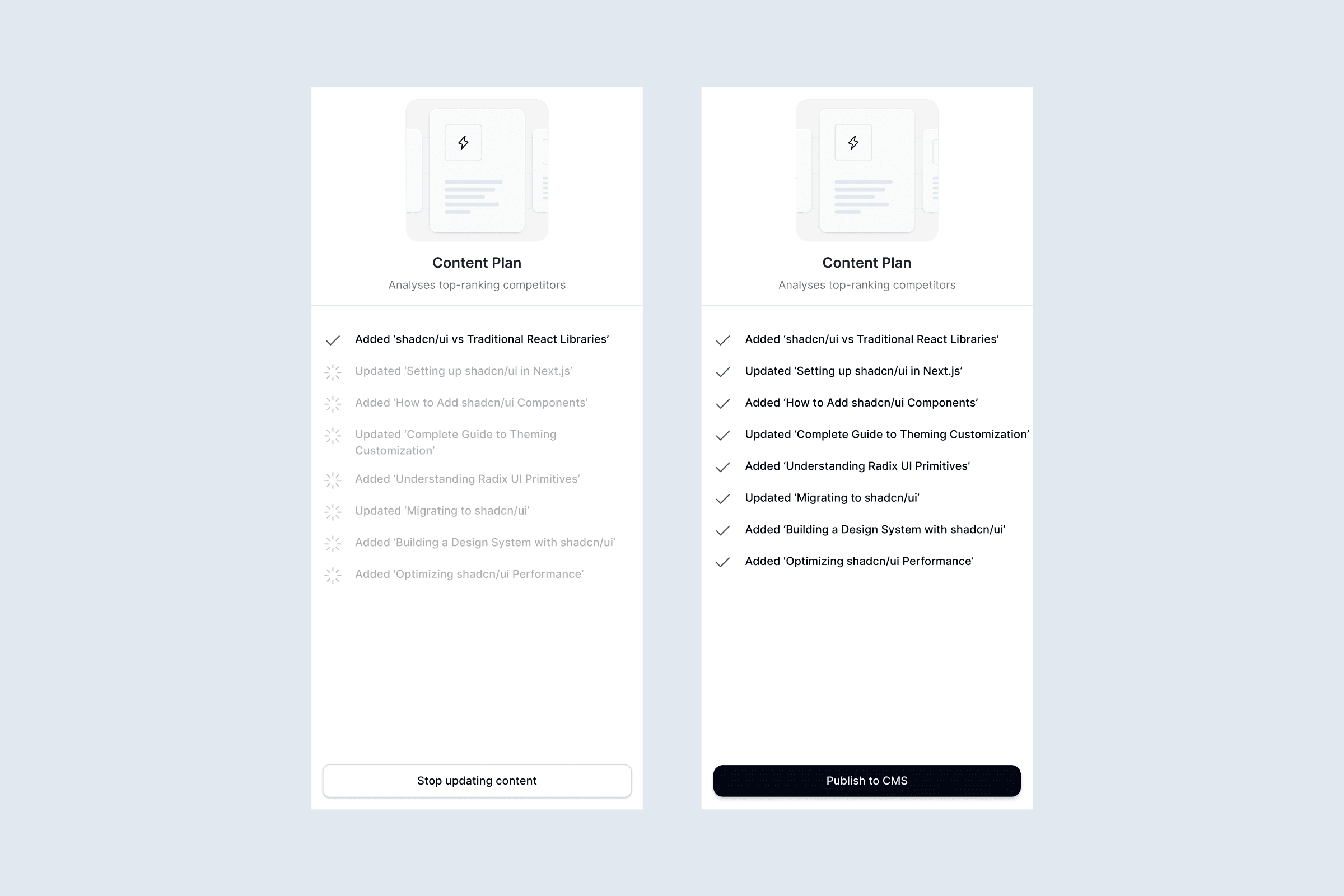
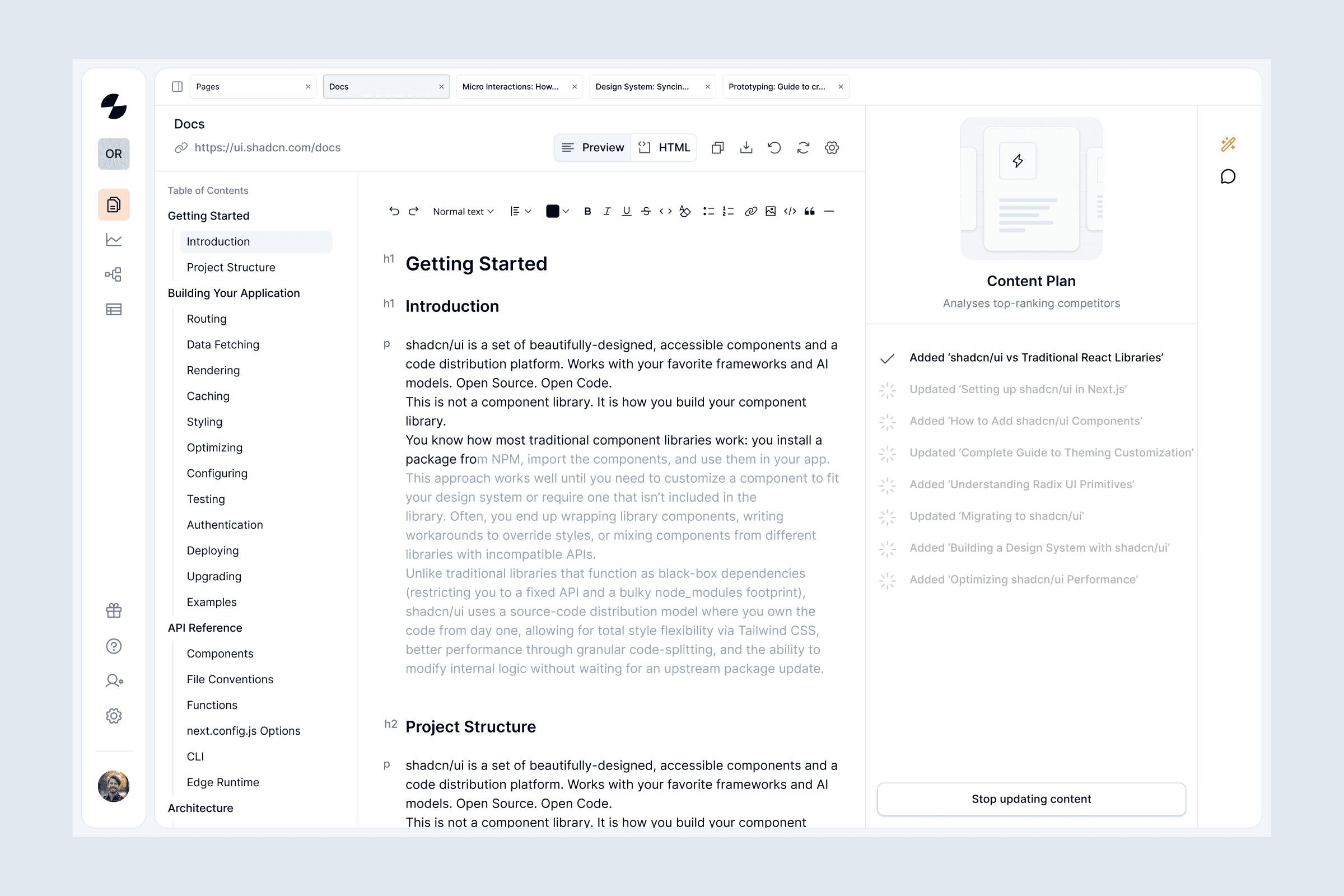
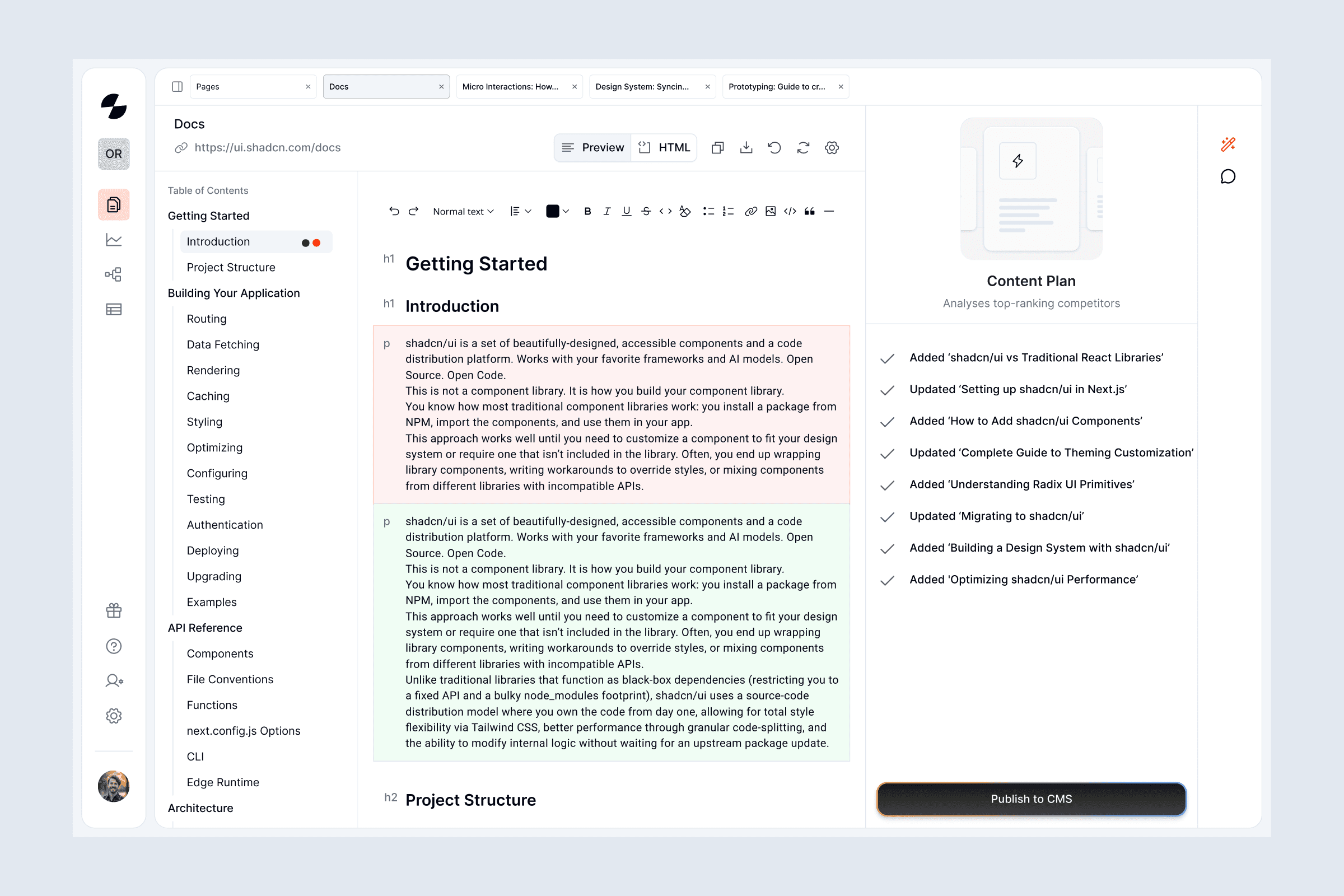
A progress bar provides visual feedback while the content updates. Finally, users can publish the updated content directly to their CMS.
Putting it all together
Remember those two sidebar approaches I explored? The business owner preferred the sidebar in a collapsed or hidden state to maximize content space. Here's how the final layout came together.